# 跑通示例项目 (/zh-CN/solutions/showroom/build/video-loader/run-project)
> For AI agents: see the complete documentation index at [llms.txt](/llms.txt).
<_PlatformTabsGroup>
<_PlatformProcessedMarker groupMode="structured" canonicalPlatform="android" platform="android" />
## 前提条件 [#前提条件]
本文介绍如何快速跑通 `VideoLoaderAPI` 示例项目,体验直播应用中视频的秒开和秒切效果。开始前,请确保满足以下前提条件:
- [Git](https://git-scm.com/downloads)
- [Java Development Kit](https://www.oracle.com/java/technologies/javase-downloads.html) 11
- [Android Studio](https://developer.android.com/studio/) 3.5 及以上
- [开通秀场直播服务](/zh-CN/solutions/showroom/build/enable-service)
- Android 手机,版本 Android 5.0(API Level 21)及以上
:::warning[注意]
声网推荐使用真机运行项目。部分模拟机可能存在功能缺失或者性能问题。
:::
## 克隆仓库 [#克隆仓库]
运行以下命令克隆仓库到本地:
```shell
git clone git@github.com:AgoraIO-Community/VideoLoaderAPI.git
```
## 配置示例项目 [#配置示例项目]
运行 `VideoLoaderAPI` 项目前,你需要在 `gradle.properties` 文件中设置如下参数:
```kotlin
AGORA_APP_ID=
AGORA_APP_CERTIFICATE=
CLOUD_PLAYER_KEY=
CLOUD_PLAYER_SECRET=
```
你可以在[创建声网项目](/zh-CN/solutions/showroom/build/enable-service#创建声网项目)后,从控制台获取这些参数的值,详情如下:
| 参数 | 描述 | 获取方式 |
|----|----|----|
| `AGORA_APP_ID` | 声网项目的 App ID | [获取 App ID](/zh-CN/solutions/showroom/build/enable-service#获取-app-id) |
| `AGORA_APP_CERTIFICATE` | 声网项目的 App 证书 |[获取 App 证书](/zh-CN/solutions/showroom/build/enable-service#获取-app-证书) |
| `CLOUD_PLAYER_KEY` | 声网输入在线媒体流 RESTful 服务所需的客户 ID | [获取客户 ID 和密钥](/zh-CN/solutions/showroom/build/enable-service#获取客户-id-和客户密钥) |
| `CLOUD_PLAYER_SECRET` | 声网输入在线媒体流 RESTful 服务所需的客户密钥 | [获取客户 ID 和密钥](/zh-CN/solutions/showroom/build/enable-service#获取客户-id-和客户密钥) |
## 编译并运行示例项目 [#编译并运行示例项目]
按照如下步骤进行操作:
1. 开启 Android 设备的开发者选项,打开 USB 调试,通过 USB 连接线将 Android 设备接入电脑。
2. 用 Android Studio 打开 `VideoLoaderAPI/Android` 文件夹。
3. 在 Android Studio 中,点击 **Sync Project with Gradle Files** 按钮,以让项目与 Gradle 文件同步。
4. 待同步成功后,点击 `Run 'app'`。片刻后,**秒开秒切**应用便会安装到你的 Android 设备上。
5. 打开应用,点击任意一个房间,即可进入房间并体验秒开。在房间内,上下滑动,即可切换房间并体验秒切。
<_PlatformProcessedMarker close="true" />
<_PlatformProcessedMarker groupMode="structured" canonicalPlatform="android" platform="ios" />
本文介绍如何快速跑通 `VideoLoaderAPI` 示例项目,体验直播应用中视频的秒开和秒切效果。
## 前提条件 [#前提条件-1]
开始前,请确保满足以下前提条件:
- [Git](https://git-scm.com/downloads)
- [CocoaPods](https://guides.cocoapods.org/using/getting-started.html#getting-started)
- [Xcode](https://apps.apple.com/cn/app/xcode/id497799835?mt=12) 12.0 及以上
- 有效的苹果开发者账号
- [开通秀场直播服务](/zh-CN/solutions/showroom/build/enable-service)
- iOS 设备,版本 13.0 及以上
:::warning[注意]
声网推荐使用真机运行项目。部分模拟机可能存在功能缺失或者性能问题。
:::
## 克隆仓库 [#克隆仓库-1]
运行以下命令克隆仓库到本地:
```shell
git clone git@github.com:AgoraIO-Community/VideoLoaderAPI.git
```
## 配置示例项目 [#配置示例项目-1]
按照如下步骤进行配置:
1. 运行秀场直播项目前,你需要在 `iOS/AgoraEntScenarios/KeyCenter.swift` 文件中设置如下参数:
```swift
static let AppId: String = <#YOUR APPID#>
static let Certificate: String? = <#YOUR Certificate#>
static let CloudPlayerKey: String? = <#Your CloudPlayerKey#>
static let CloudPlayerSecret: String? = <#Your CloudPlayerSecret#>
```
你可以在[创建声网项目](/zh-CN/solutions/showroom/build/enable-service#创建声网项目)后,从控制台获取这些参数的值,详情如下:
| 参数 | 描述 | 获取方式 |
|----|----|----|
| `AppId` | 声网项目的 App ID | [获取 App ID](/zh-CN/solutions/showroom/build/enable-service#获取-app-id) |
| `Certificate` | 声网项目的 App 证书 |[获取 App 证书](/zh-CN/solutions/showroom/build/enable-service#获取-app-证书) |
| `CloudPlayerKey` | 声网输入在线媒体流 RESTful 服务所需的客户 ID | [生成客户 ID 和密钥](/zh-CN/solutions/showroom/build/enable-service#获取客户-id-与客户密钥) |
| `CloudPlayerSecret` | 声网输入在线媒体流 RESTful 服务所需的客户密钥 | [生成客户 ID 和密钥](/zh-CN/solutions/showroom/build/enable-service#获取客户-id-与客户密钥) |
2. 在 `VideoLoaderAPI/iOS/Example` 目录下,运行 `pod install`,然后等待依赖库安装完成。安装完成后,会出现 `VideoLoaderAPI.xcworkspace` 文件。
## 编译并运行示例项目 [#编译并运行示例项目-1]
按照如下步骤进行操作:
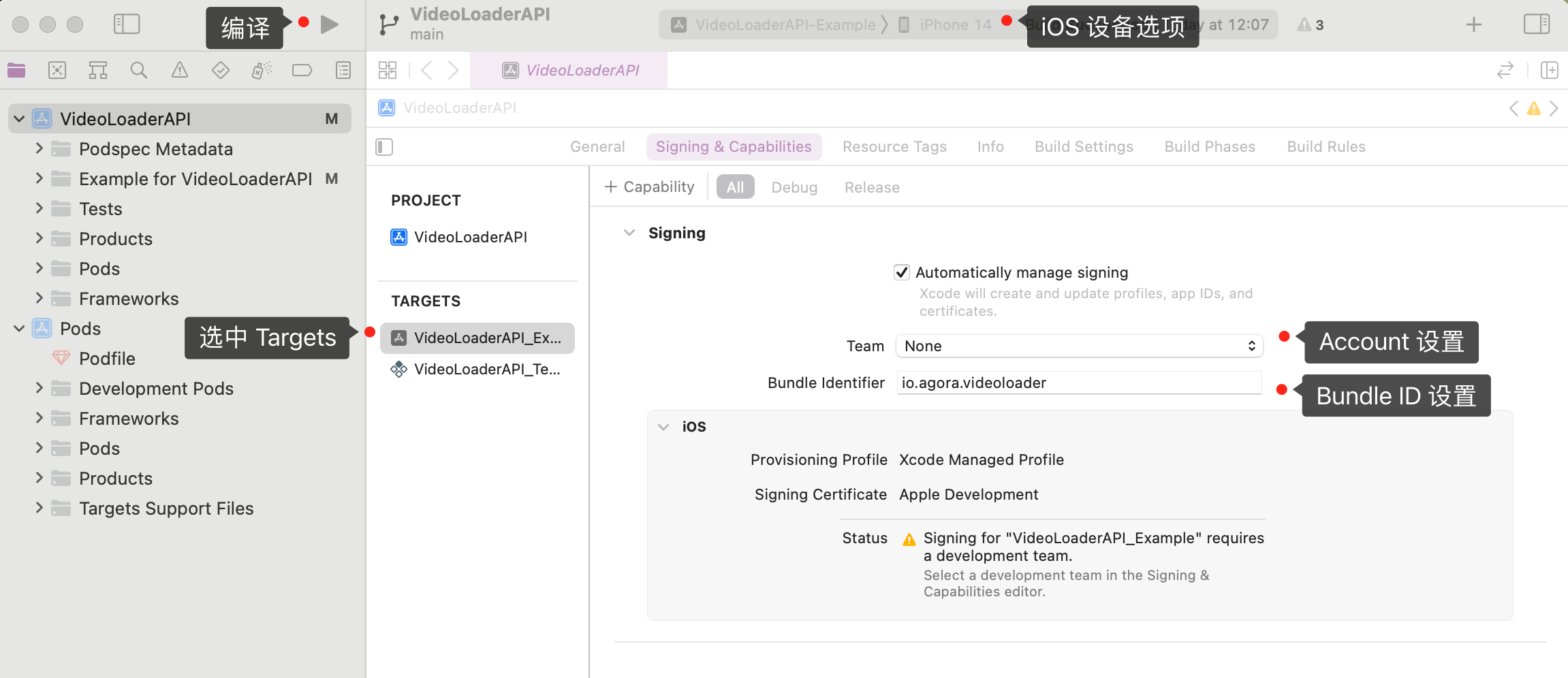
1. 连接上 iOS 设备后,点击 `VideoLoaderAPI.xcworkspace` 文件以通过 Xcode 打开项目,并在 **iOS Device** 选项中勾选上你的 iOS 设备。
2. 在项目 **TARGETS** 下的 **Signing & Capabilities** 界面勾选 **Automatically manage signing**,配置你的苹果开发者账号和 **Bundle Identifier**。Bundle ID 用于在设备上唯一标识应用程序。在开发应用时,你需要设置 Bundle ID。
3. 点击运行按钮 开始编译。
4. 编译成功后,你的 iOS 设备上会出现**秒切秒开**应用。在 iOS 系统设置中将该应用设为信任开发者后你才能打开应用。
5. 打开应用,点击任意一个房间,即可进入房间并体验秒开。在房间内,上下滑动,即可切换房间并体验秒切。
<_PlatformProcessedMarker close="true" />